How to use tapAndScore Tennis

There are 2 ways to keep scores using tapAndScore.

by hand gestures and

by tapping on the screen.

It cannot be simpler!

To use hand gestures

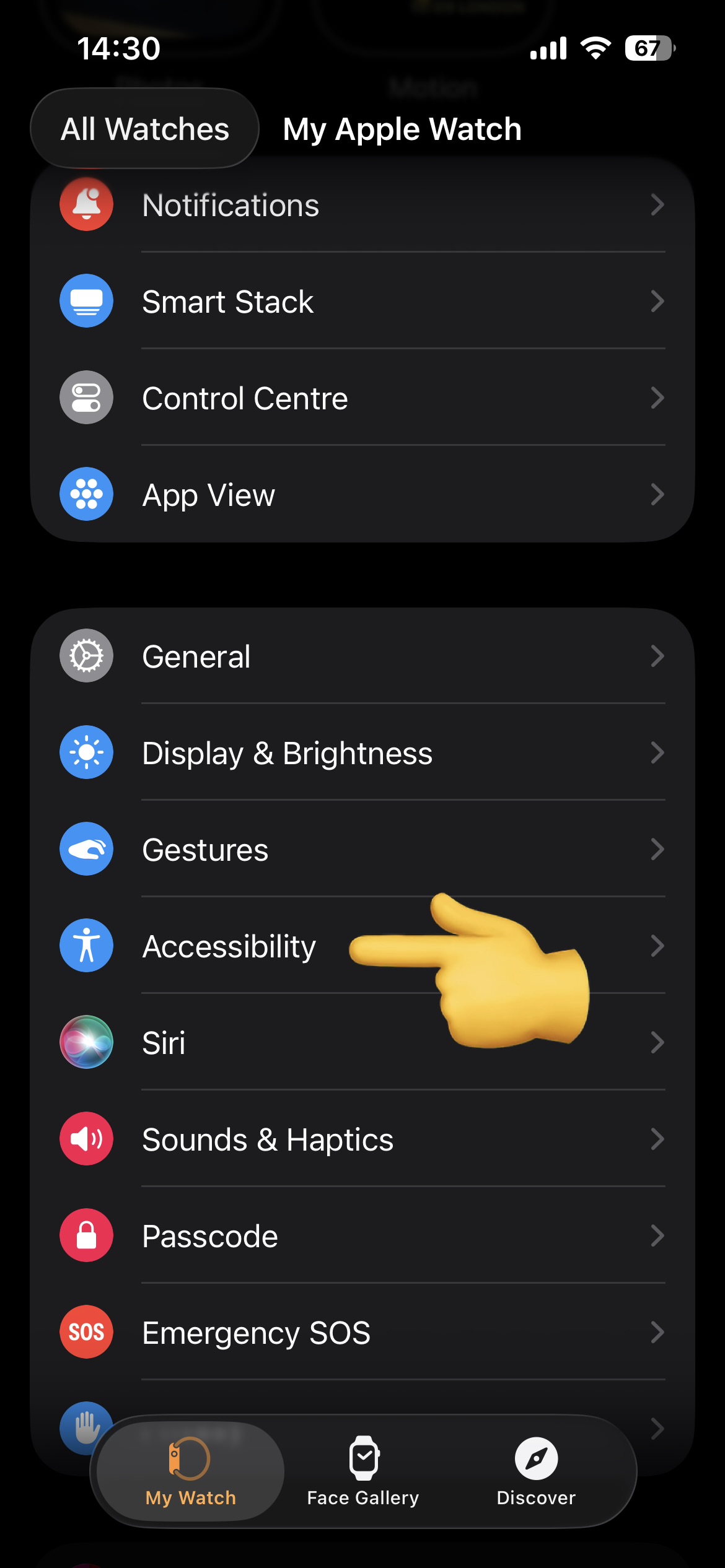
1. Select your Watch from the iPhone’s Watch App.

2. Choose “Accessibility”.

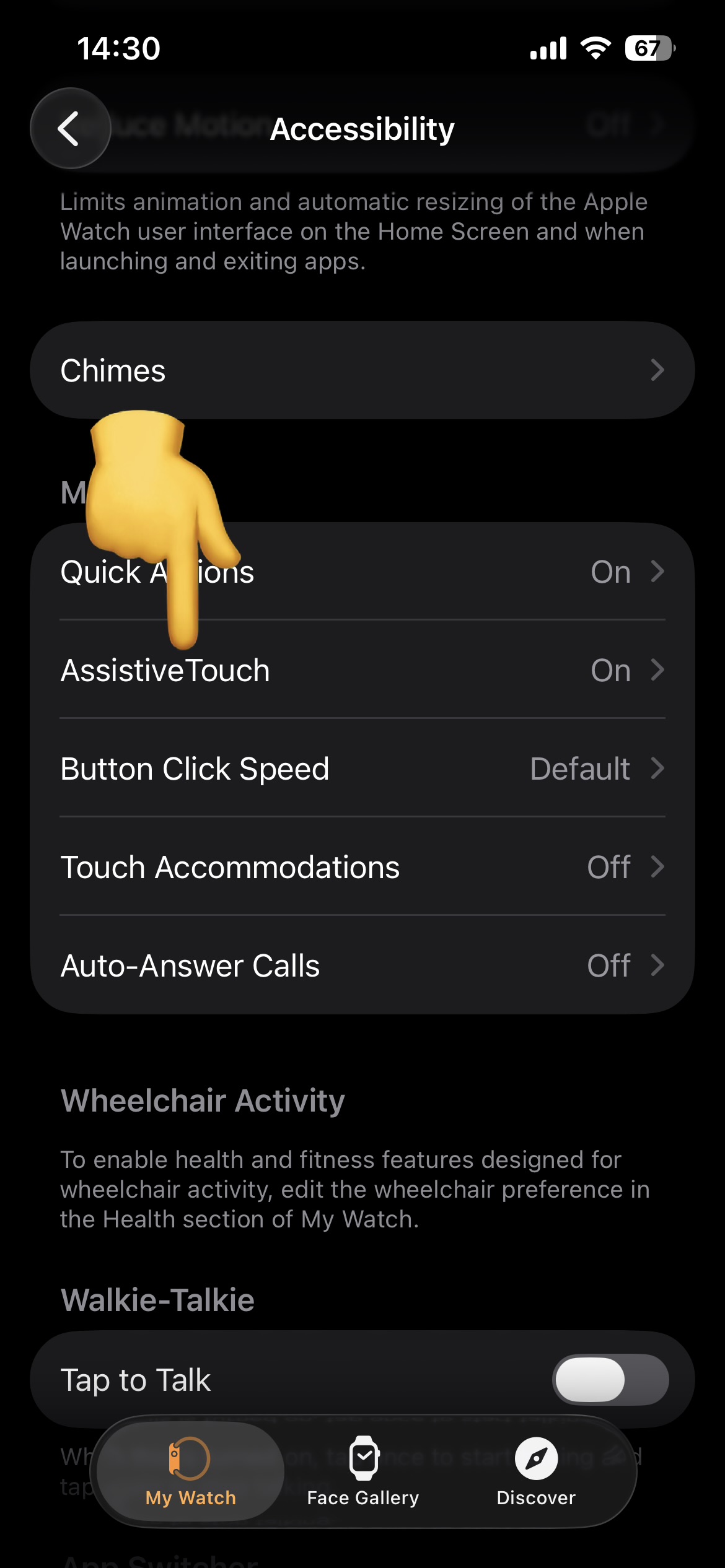
3. Scroll down on the Accessibility page to find “AssistiveTouch” in Motor Section. Turn it on. 


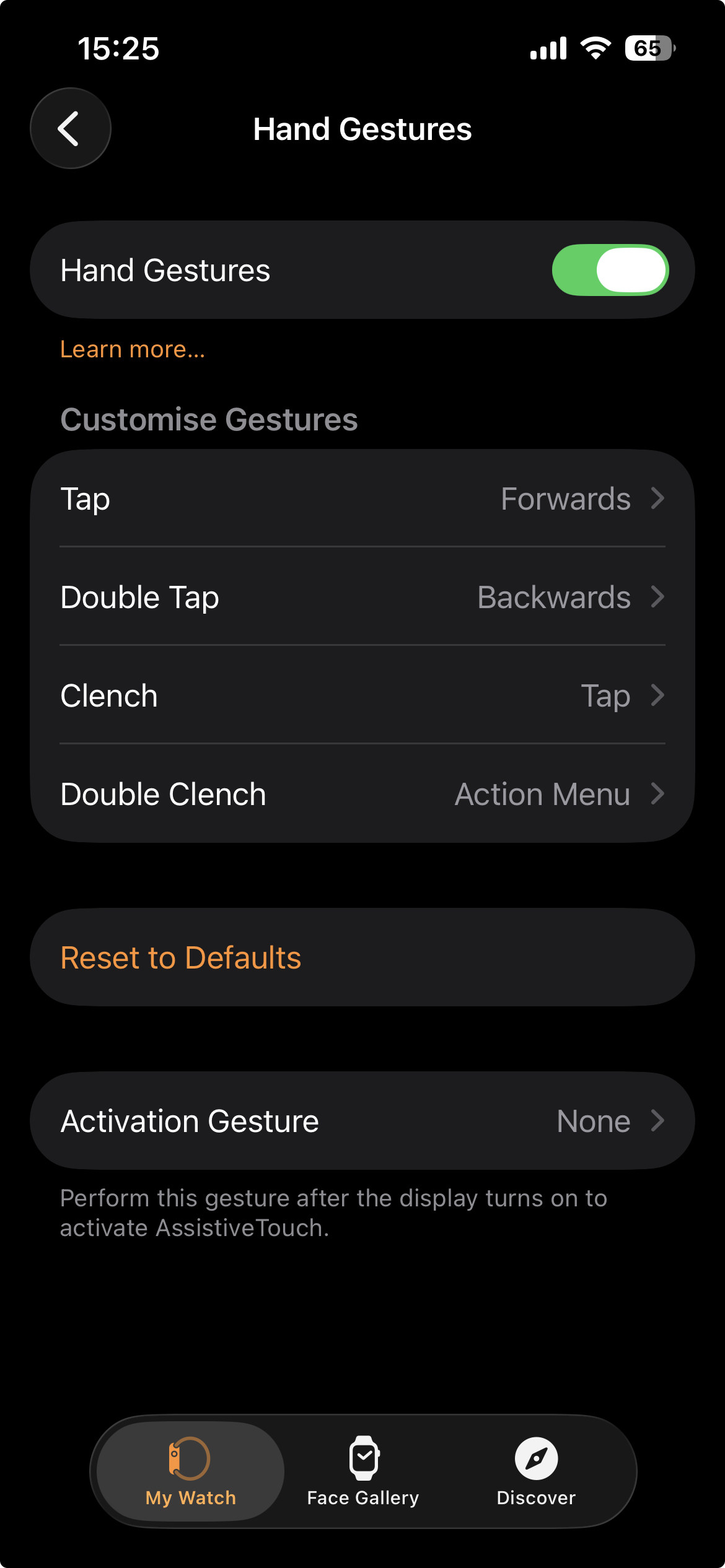
4. Turn on [Hand Gestures] in the Inputs section.

You’re now set to go!

Tap/Pinch=👌

Clench=✊

In the default setting, “👌” is to move the focus and “✊“️ to execute the same action as tapping the screen with your finger.
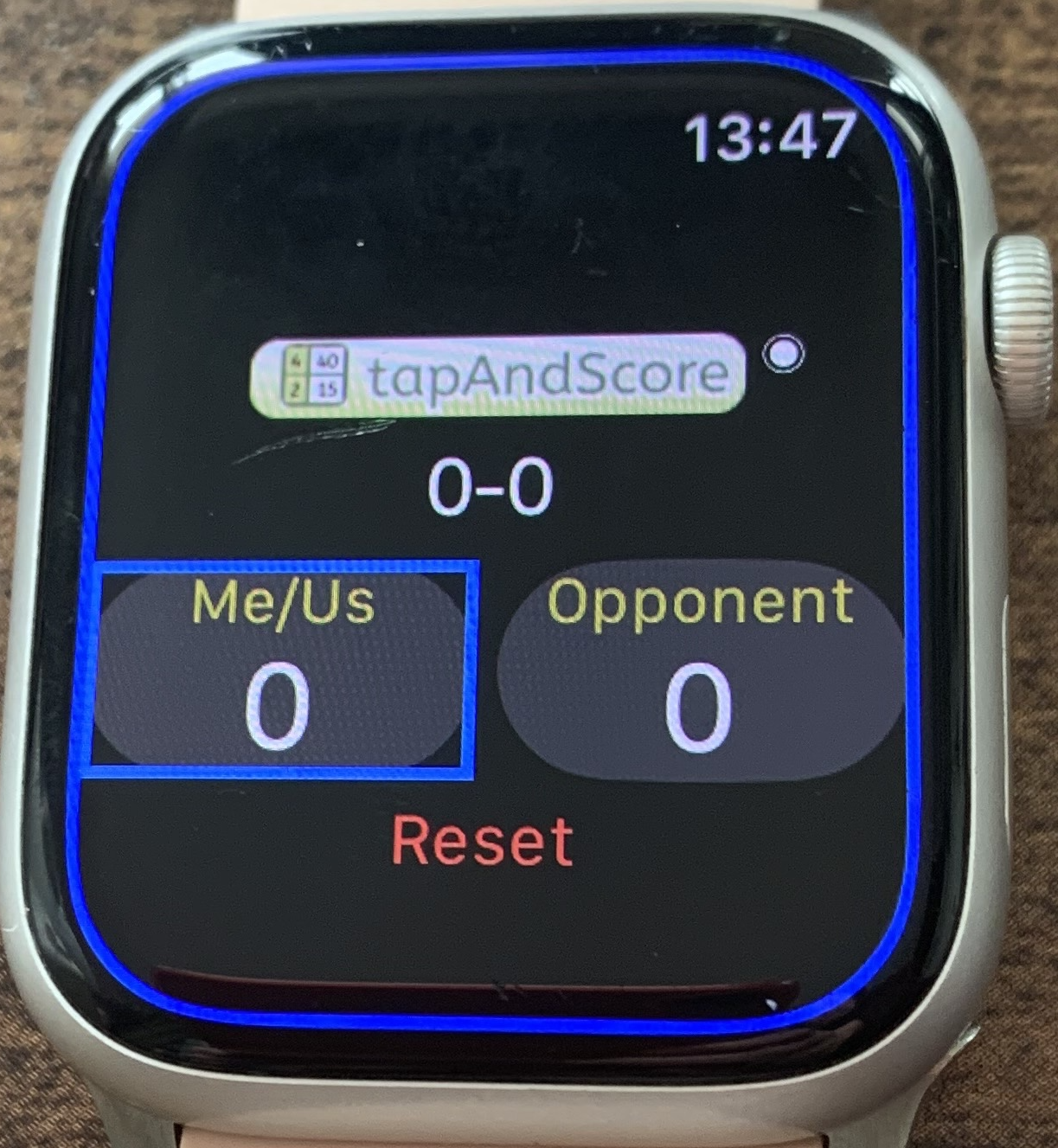
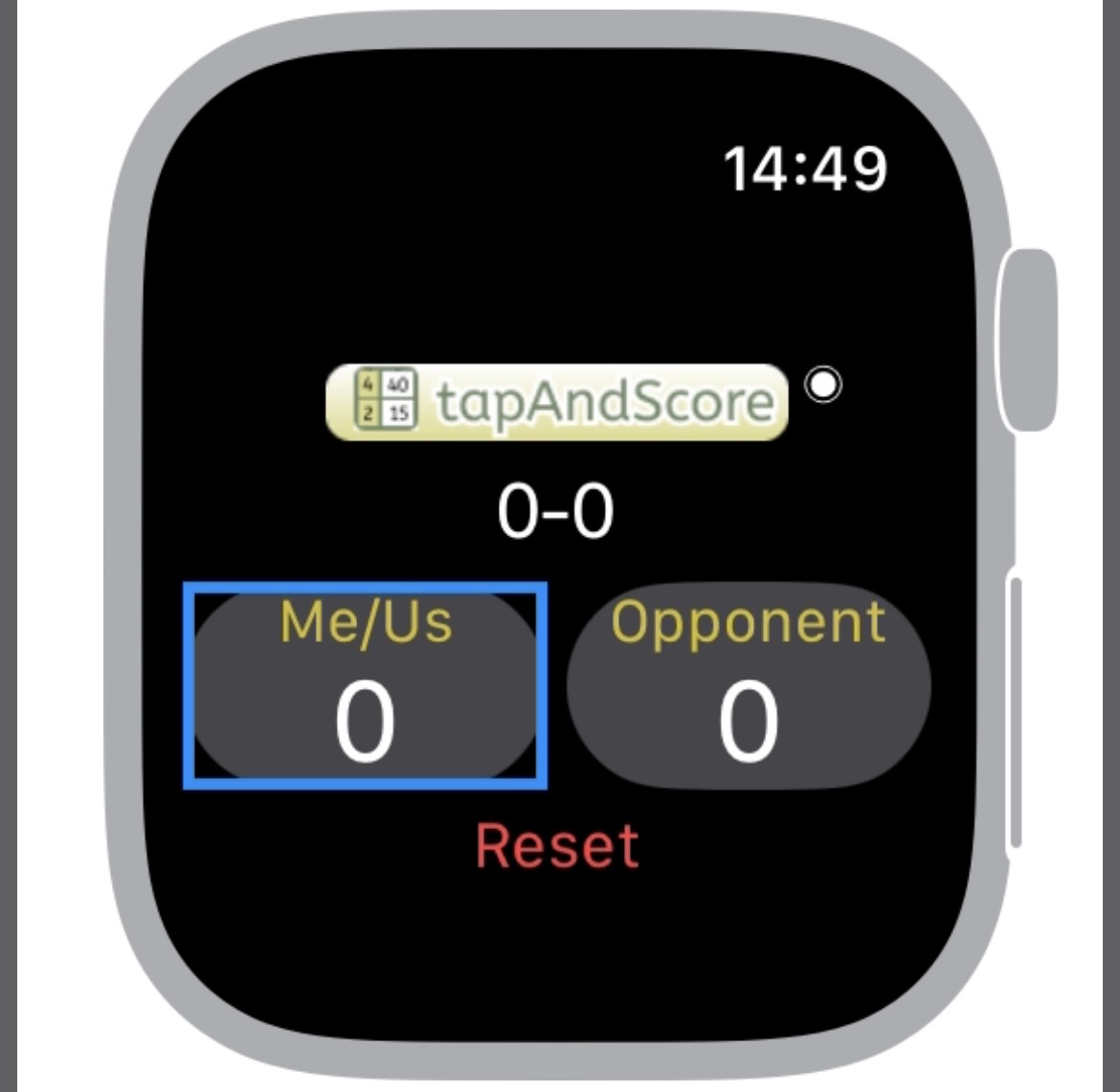
Apple Watch sleeps (dims down) when you stay still for a while. In such a case, wake it up first by either raising your wrist or tapping the screen, and then activate it. When it wakes up, it shows a blue frame as shown in the picture. Then activate the app with double clench. You’ll then see a blue focus on your score.

If you have any questions or feedbacks, please use the Comment Box below. We love to hear from you!

To use the app (we assume  default settings):

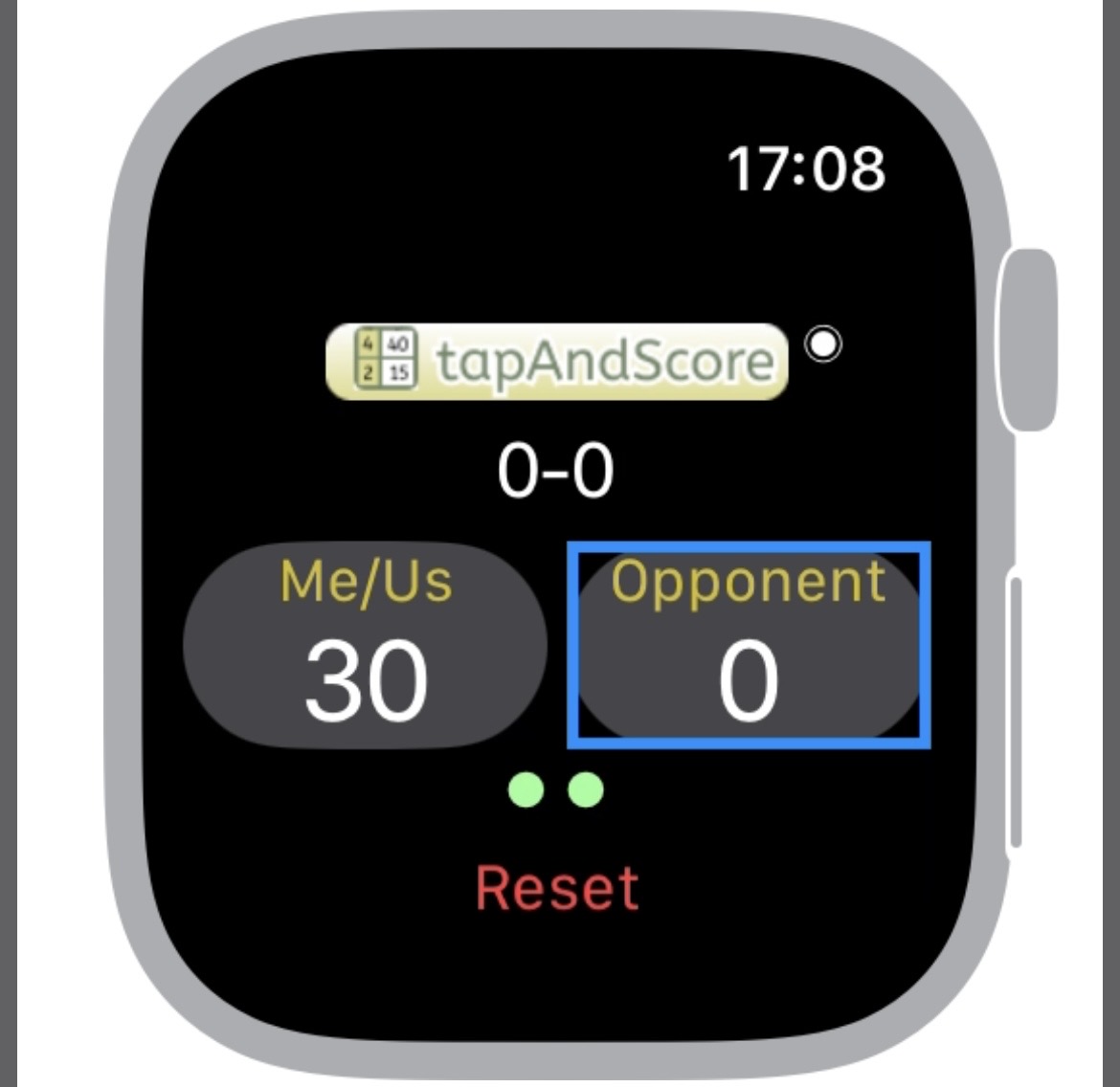
When you/your team score, confirm the focus is on your side and clench.

When the opponent scores, tap/pinch to move the focus to them and clench to score.

If you choose to touch with a finger, simply tap the box of the scoring side. 

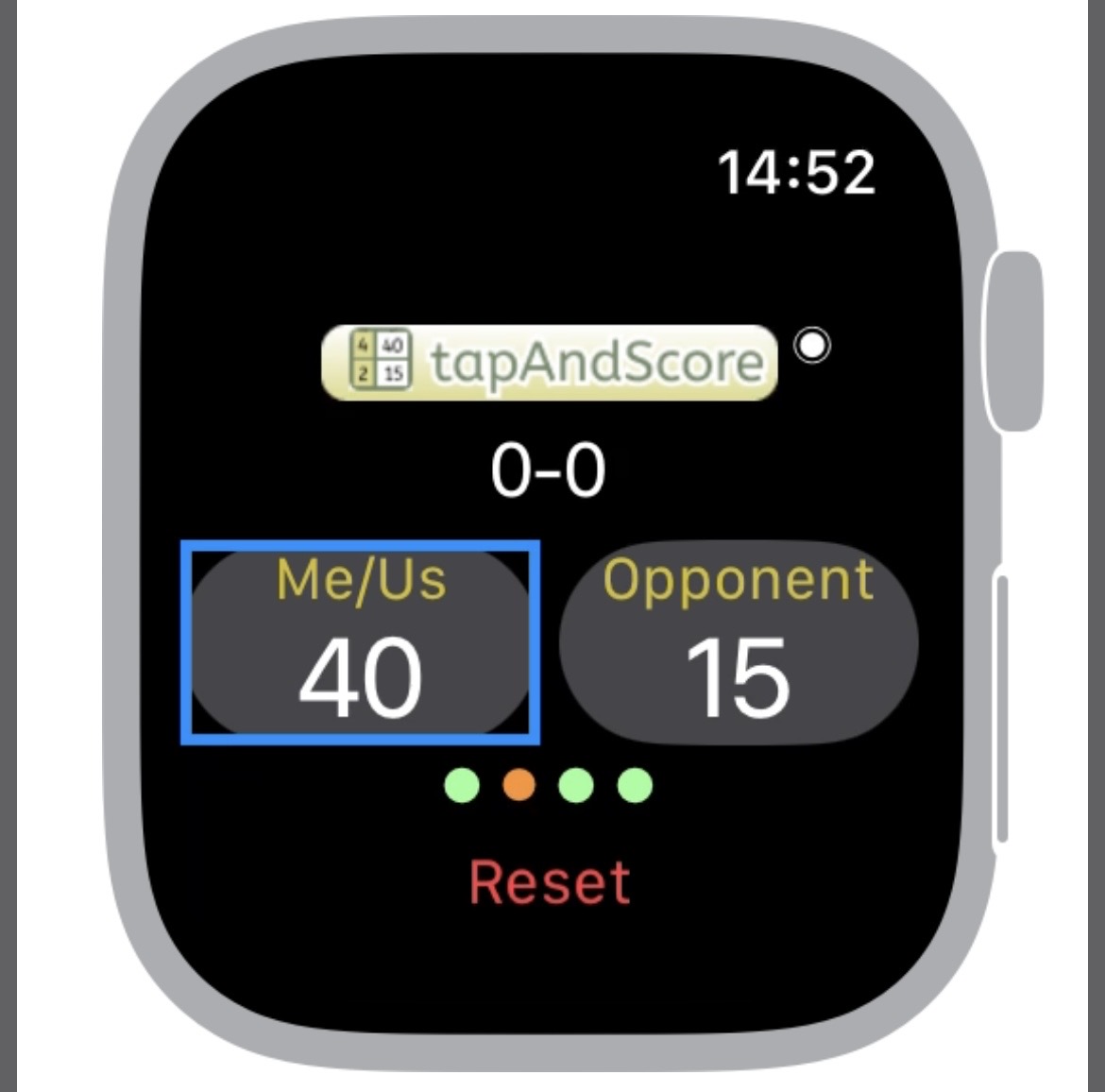
When you score, it shows 🟢 and when your opponent scores, it shows 🟠, allowing you to keep track how both parties have scored (you might find it handy when there is conflict over the scores!).

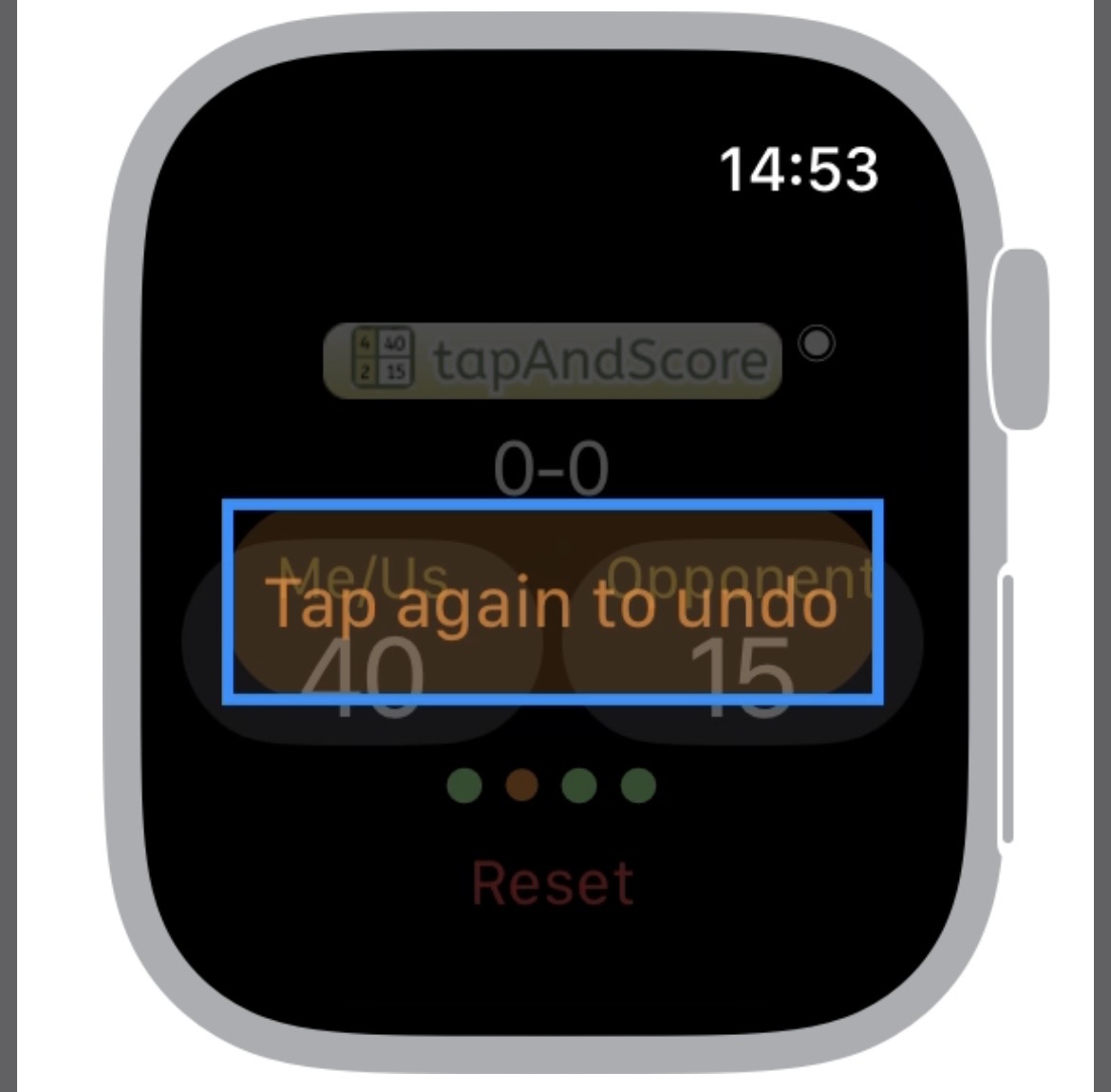
Either you use hand gestures or screen tapping, you can undo what you’ve just done while this message (Tap again to undo) shows. Or rotate down the Digital Crown to reduce the scores. You can do it over games. 

Please use the comment box below for inquiries or feedbacks. We will try to respond as much as possible. 

Leave a Reply

Your email address will not be published. Required fields are marked *