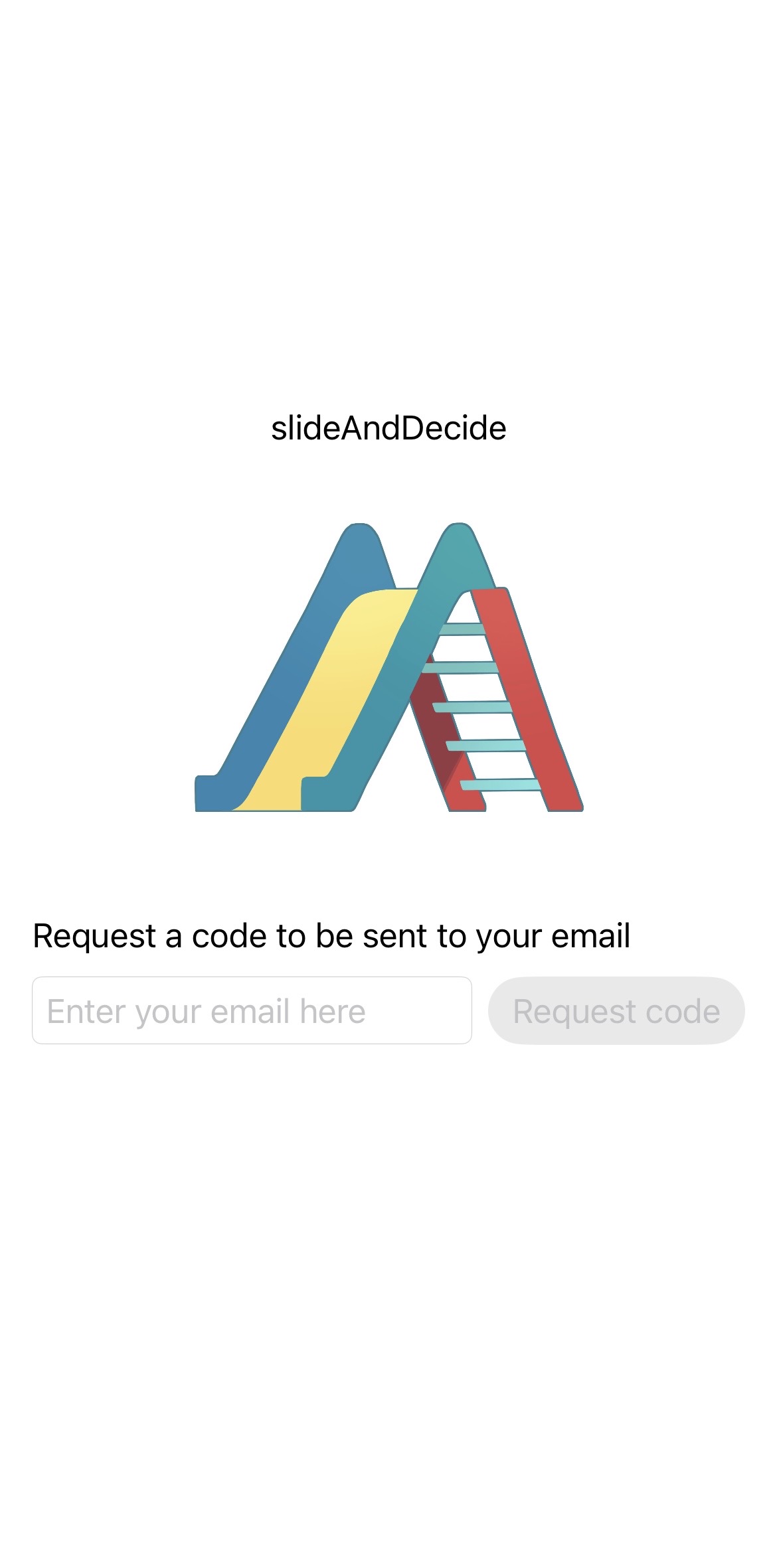
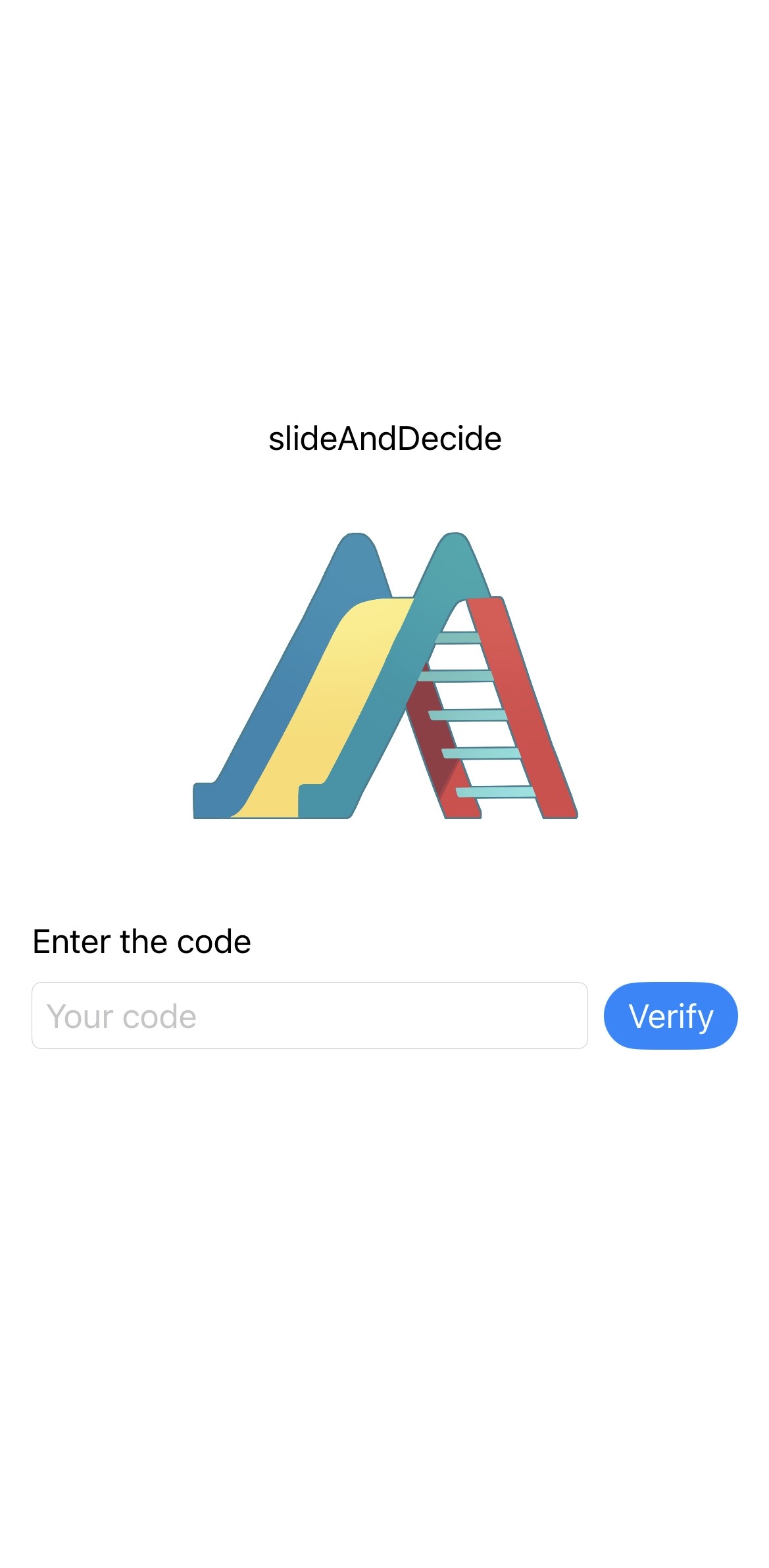
To use the App, slideAndDecide, you need to log in once with your email address.
Enter your email in the box, then tap [Request code].
A verification code will be sent to your email address.
Enter the code sent to your email address in the box, then tap [Verify].
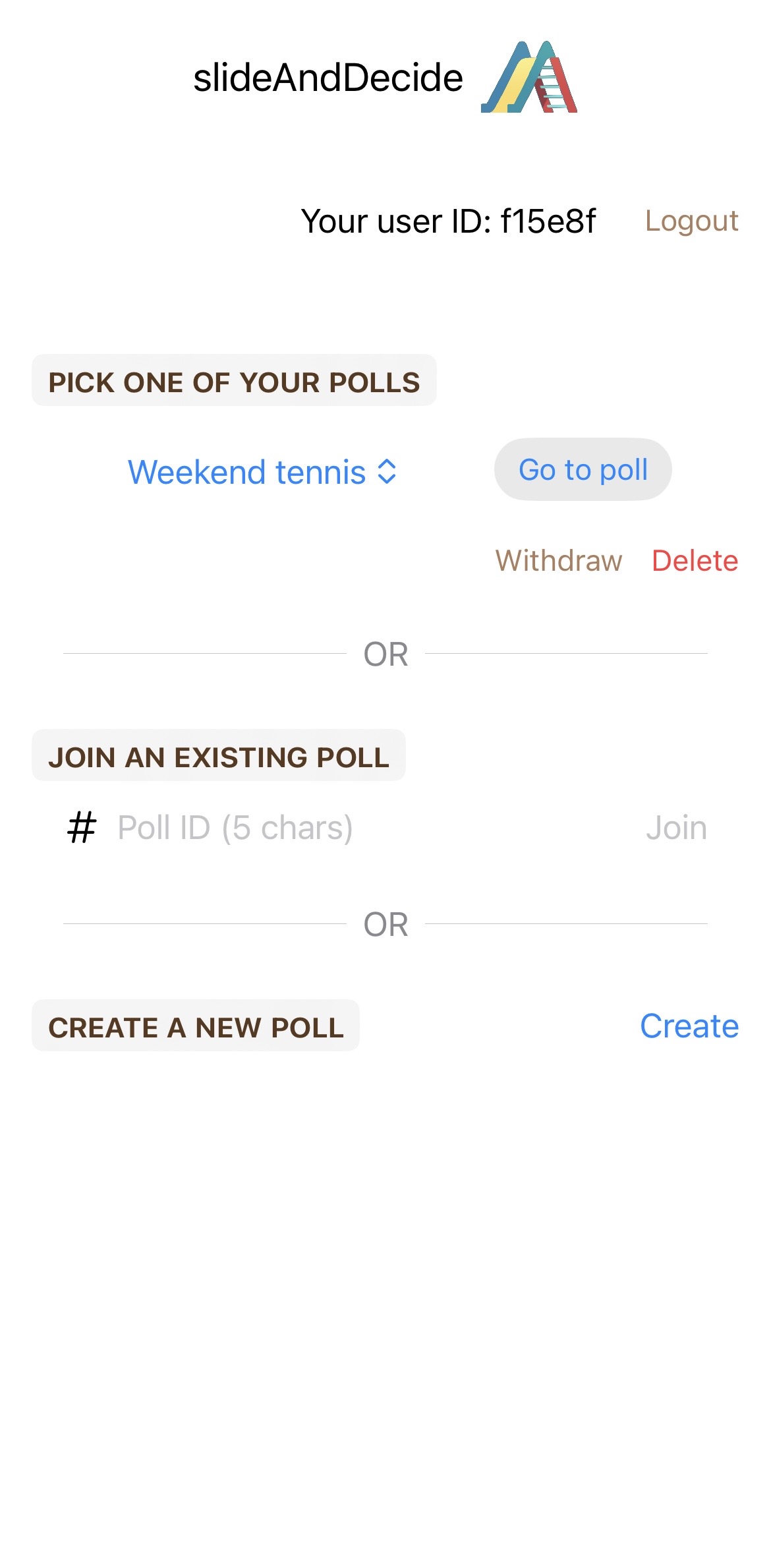
Then you have 3 choices.
PICK ONE OF YOUR POLLS
JOIN AN EXISTING POLL
CREATE A NEW POLL
If it is the first time for you to use, you could either join an existing poll as a participant or create a new poll as an organiser.
When joining an existing poll, ask the organiser to let you know Poll ID (5 characters, case insensitive). Enter the ID after #, then tap [Join].
When organising a new poll, tap [Create].
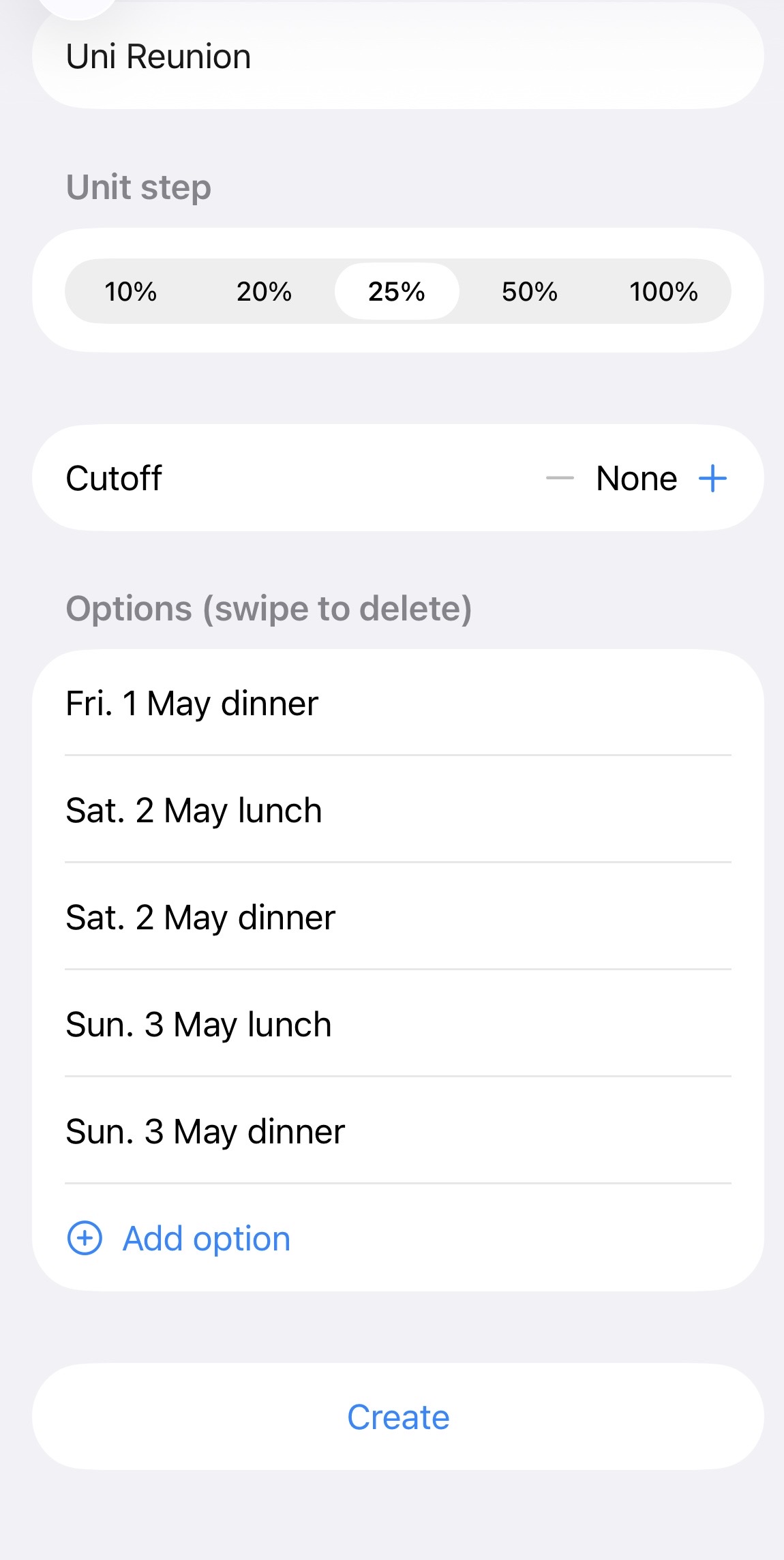
When you are organising a new poll,
Enter the title of the poll.
Chose Unit from 10,20,25,50 and 100%
Set a cutoff line if you want to. for example, if you are organising tennis with one court, you might want to set a cutoff line at 4.
Enter options.
You can increase the number of lines, by tapping [Add option].
You can delete options by swiping to delete.
When finished the setting, tap [Create].
*You can always come back to this page by tapping [Edit] in the poll page.
When you have created a new poll, or joined an existing poll, you come back to this page.
Chose your poll, then tap [Go to poll].
If you no longer want to participate, or organise the poll, you can [Withdraw] as a participant, or [Delete] as an organiser.
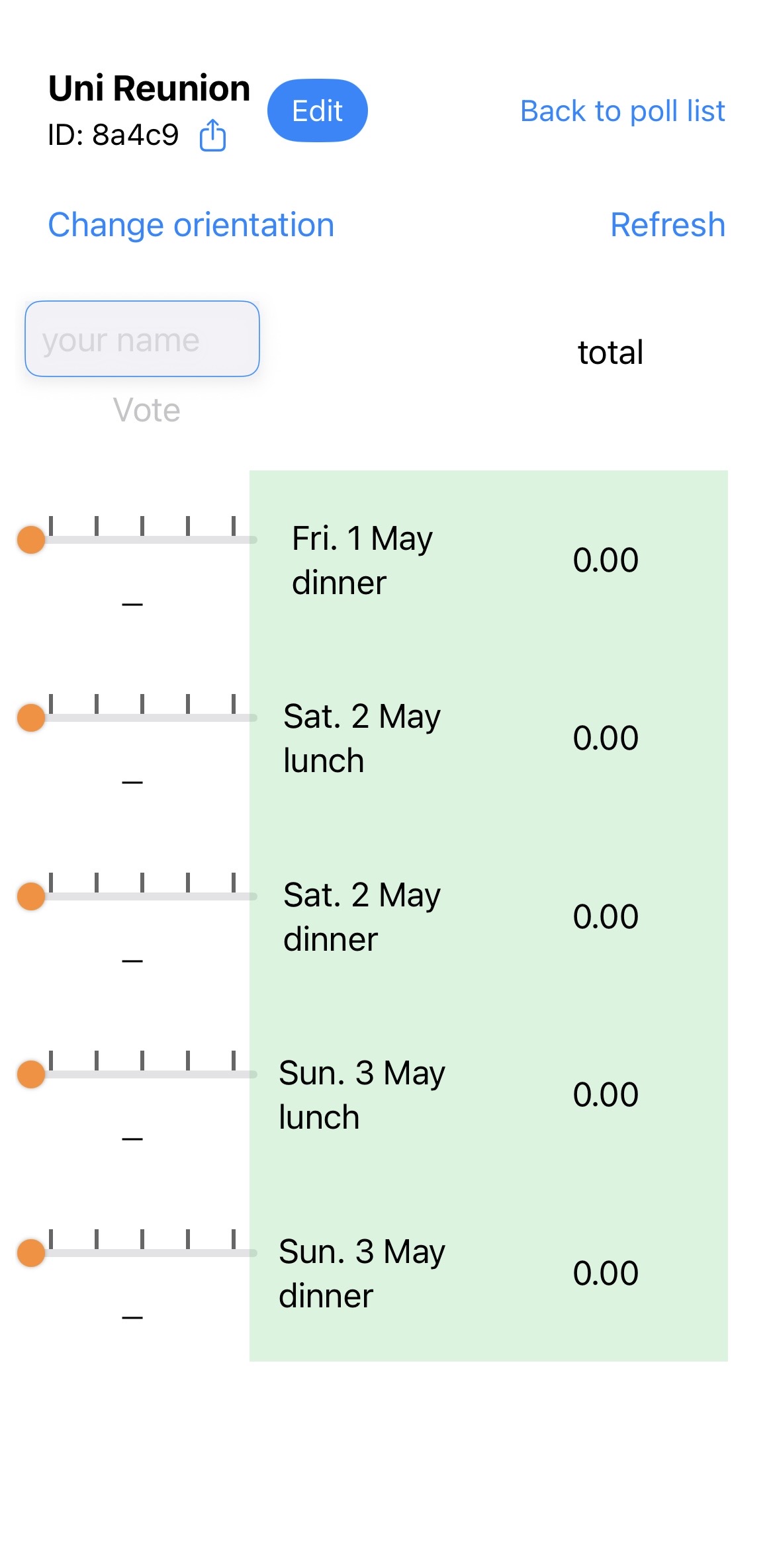
Your poll page looks like this.
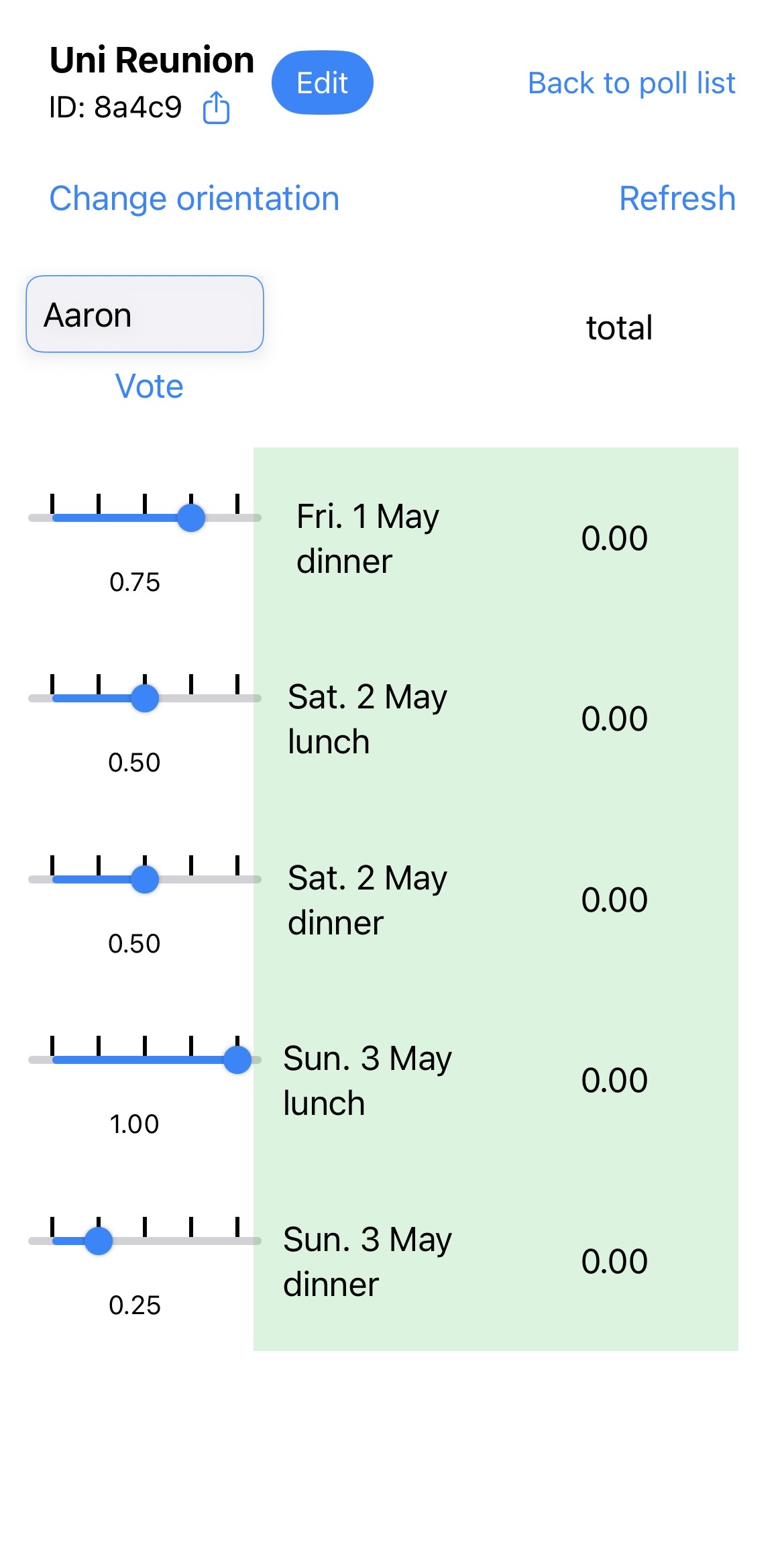
Enter your name in the box and vote by sliding the bar for each option.
In this case, the unit is 25%.
For example, if you’re almost 100% certin that you can attend, slide to 100%.
If you’re 100% sure that you cannot attend, slide to 0%.
Or, you can use the % to show your preference.
For example, even if you can attend the multiple number of days/times here but might have preference, like ‘dinner on Sat. 2 May is the most convenient for me.’ You can grade your preference by choosing the percentage.
After sliding the bar for each option, tap [Vote].
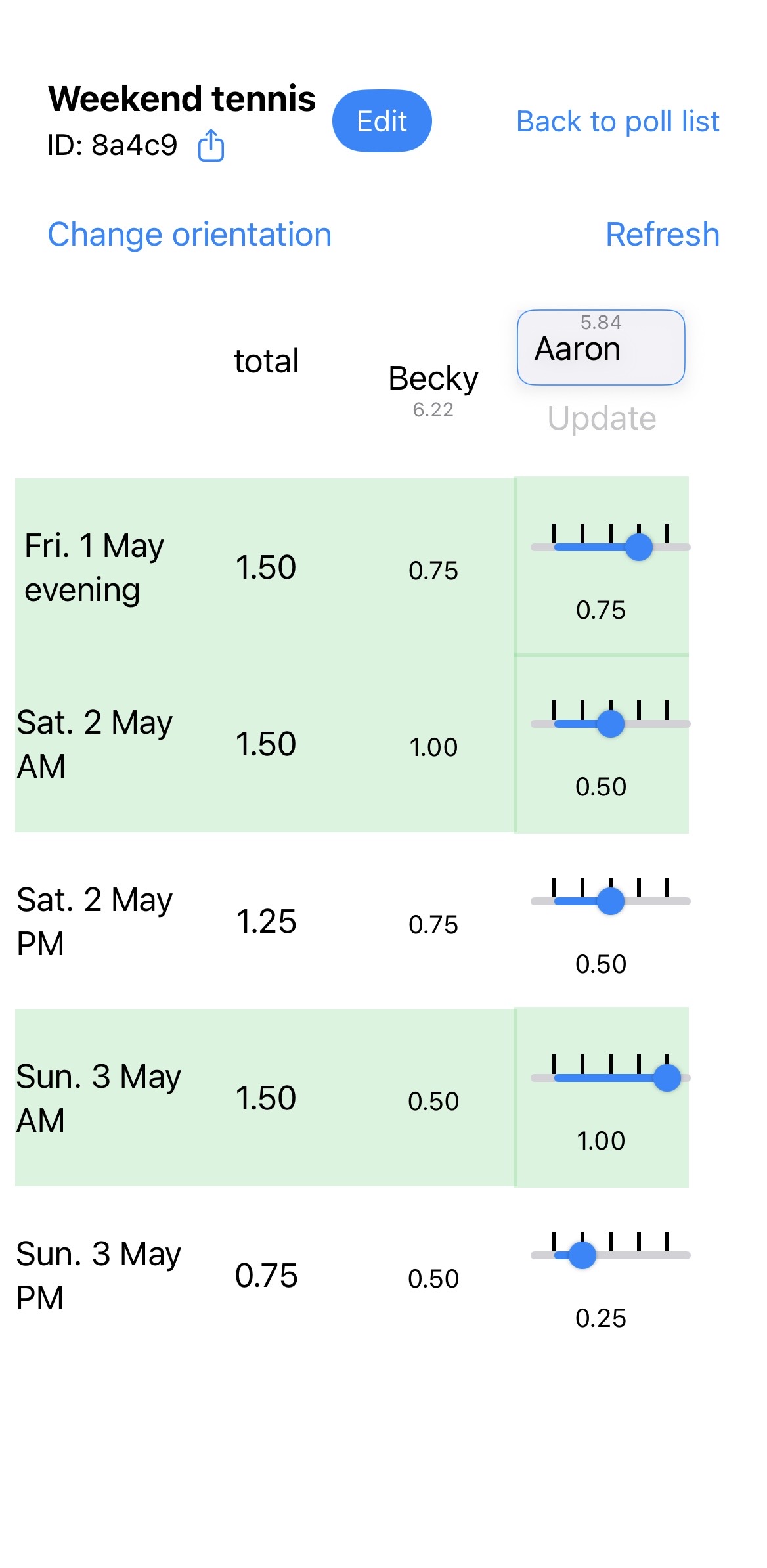
You can see how other people are voting by tapping [Refresh].
If you would like to vote for other poll(s), tap [Back to poll list].
Anybody can add/change options by [Edit].
You can share the ID by tapping the icon next to the poll ID.
You can confirm how the voting is going by refreshing the page anytime.