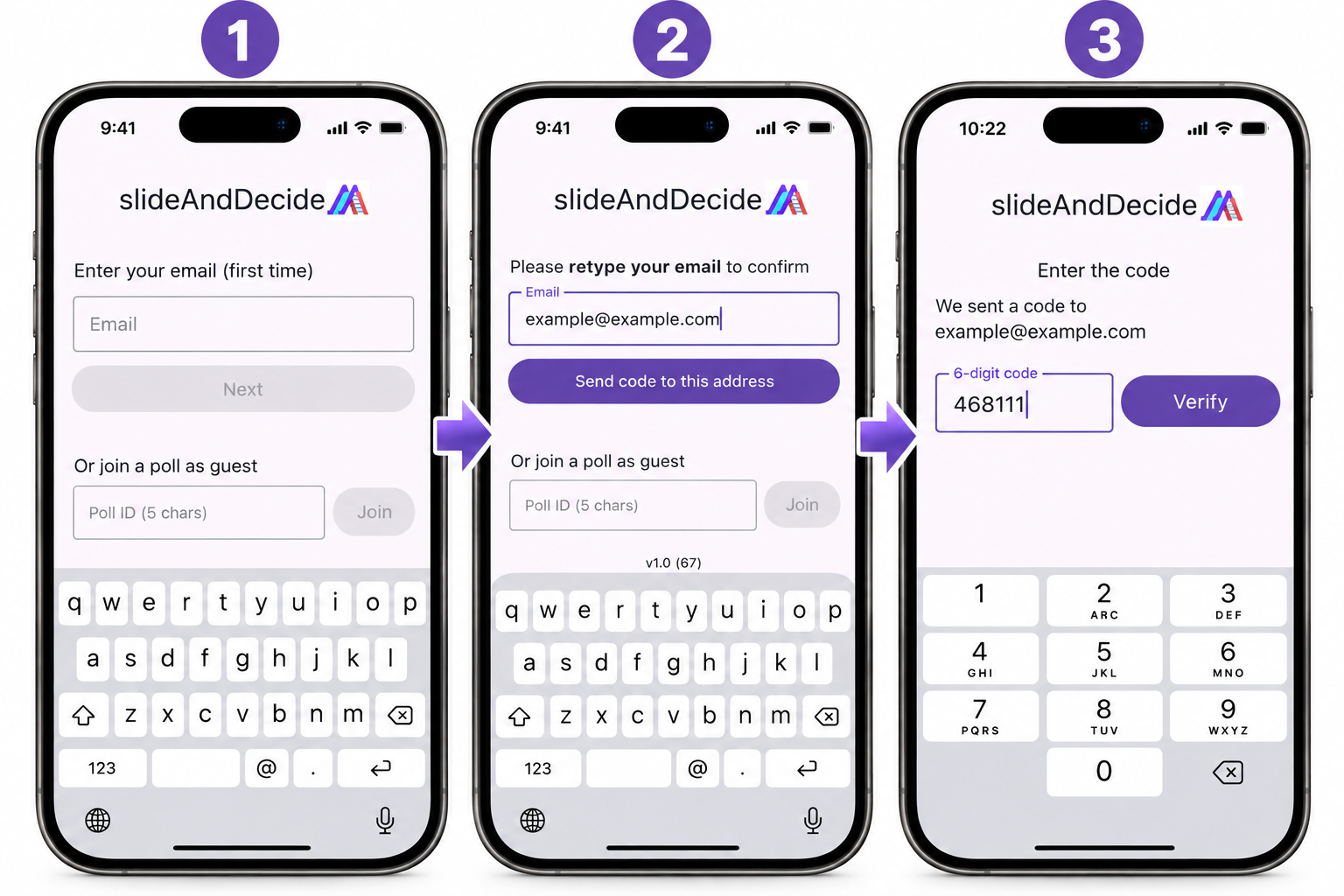
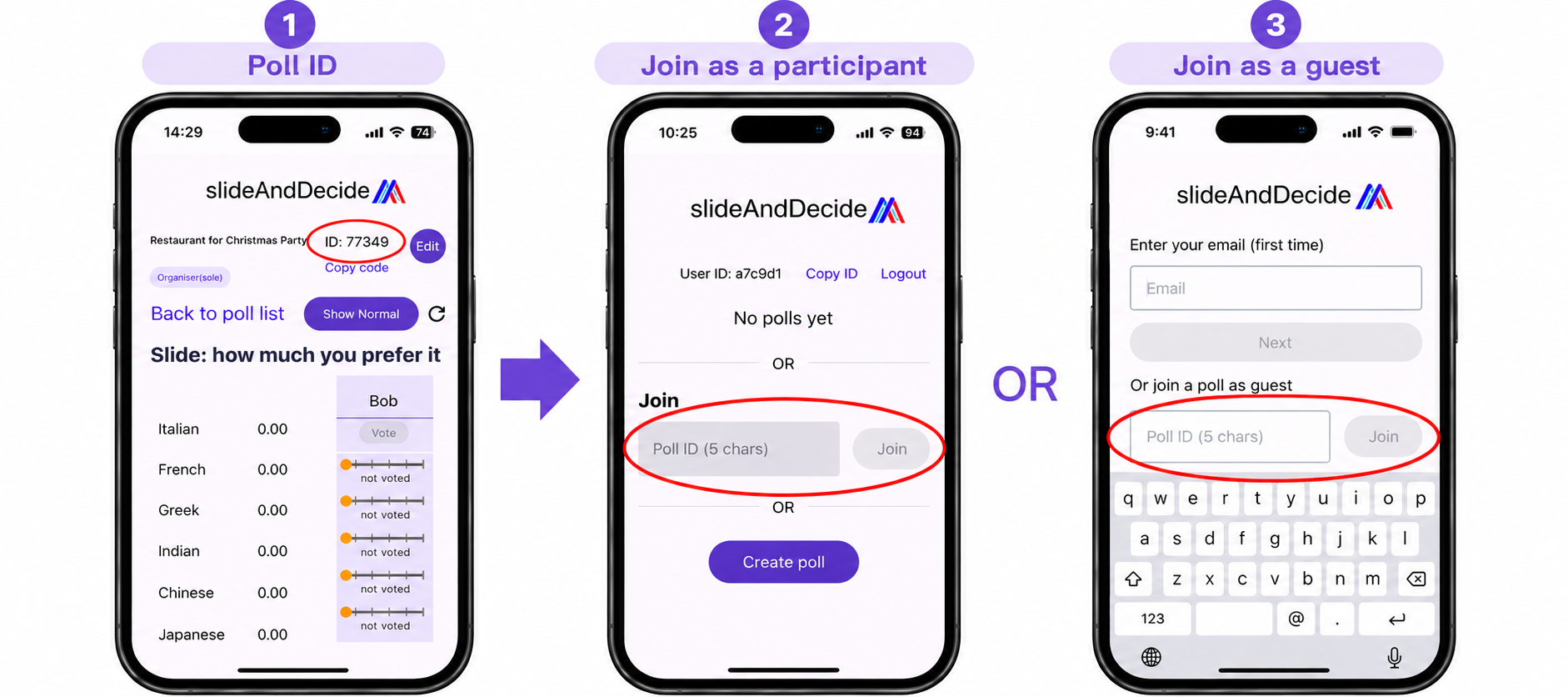
If you don’t want to sign-up, you can join as a guest (see below)
Join poll as a participant or guest
Participant: Get a 5-digit Poll ID from the organiser after signing in.
Guest: Enter the Poll ID in the [join us a guest] box in the sign-up page or you can ask the organiser to add you as a guest and vote on your behalf
*Difference between participants and guests: Participants can vote any polls but guests are allowed to vote only when the poll’s authentication is optional
Create Poll
You can organise up to 4 polls
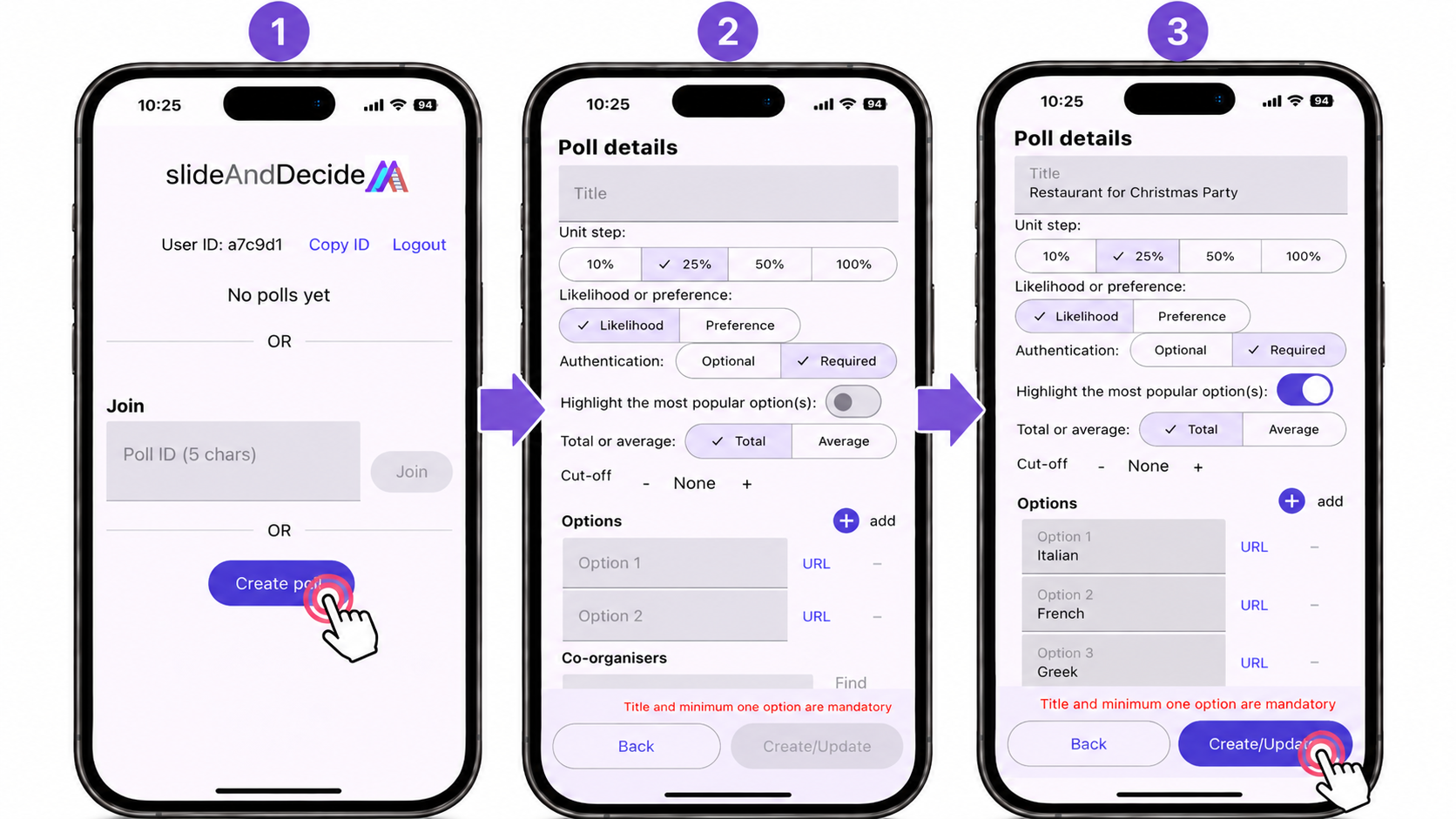
Tap [Create poll].
Enter title
Choose Unit step between 10%/25%/50% /100%
Choose between Likelihood/Preference
Choose Authentication between [Optional]/[Required]
Guest voting is allowed when [Optional] is selected.
Choose [Highlight the most popular option(s)] if you want
Decide Cut-off line if only a certain number of people can participate. A red line appears after the cut-off line
Add options
In order to add an option line, press (➕)
You can add options up to 20
You can add URLs (e.g. the restaurant’s website) to options.
Tap[Create/Update]
Title and minimum one option are mandatory
Share Poll ID
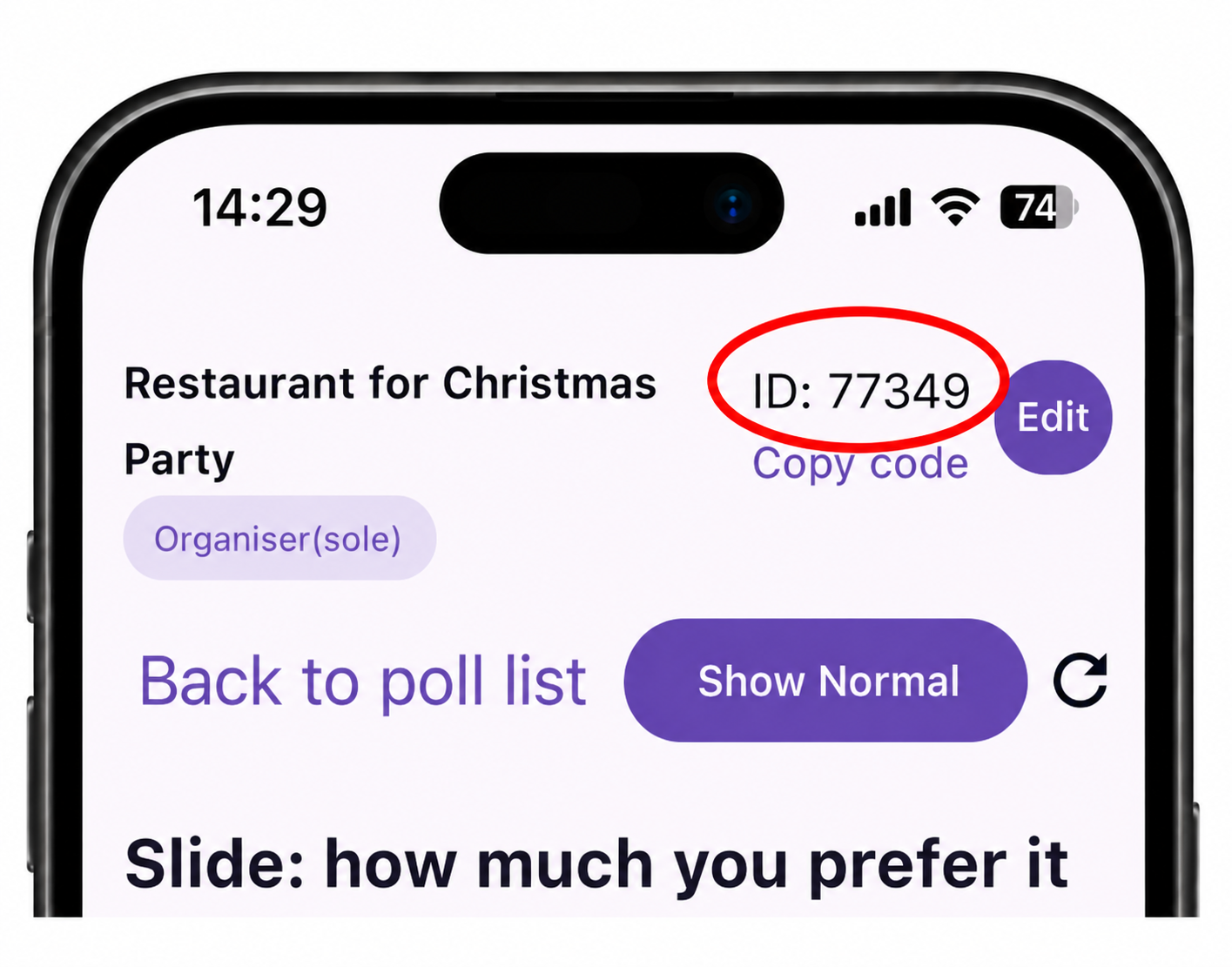
Tap [Copy code]and share it with people who you wish to participate in the poll.
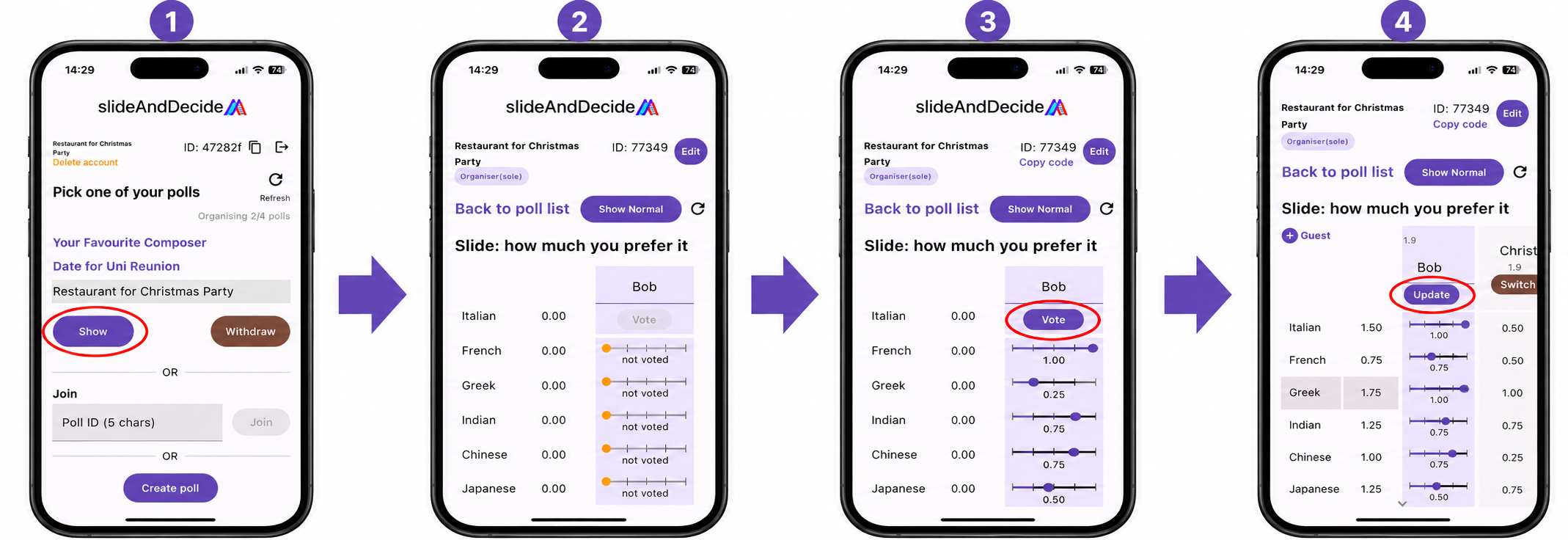
Vote and Update your Vote
Pick one of polls that you want to vote from the list
Tap [Show]
Enter your name
Vote by sliding the bar(s) to show either [how much you prefer it] or [how likely you can make it].
Sliding bars could sometimes feel fiddly. Rest your finger on the bar for a second before starting to slide.
You don’t have to vote all the options. But at least vote one of them.
Press [Vote].
You can always come back to your vote to[Update] it.
To vote a different poll, tap Back to poll list and repeat the process above.
To check if others have voted, tap refresh button↻.
Add Guests
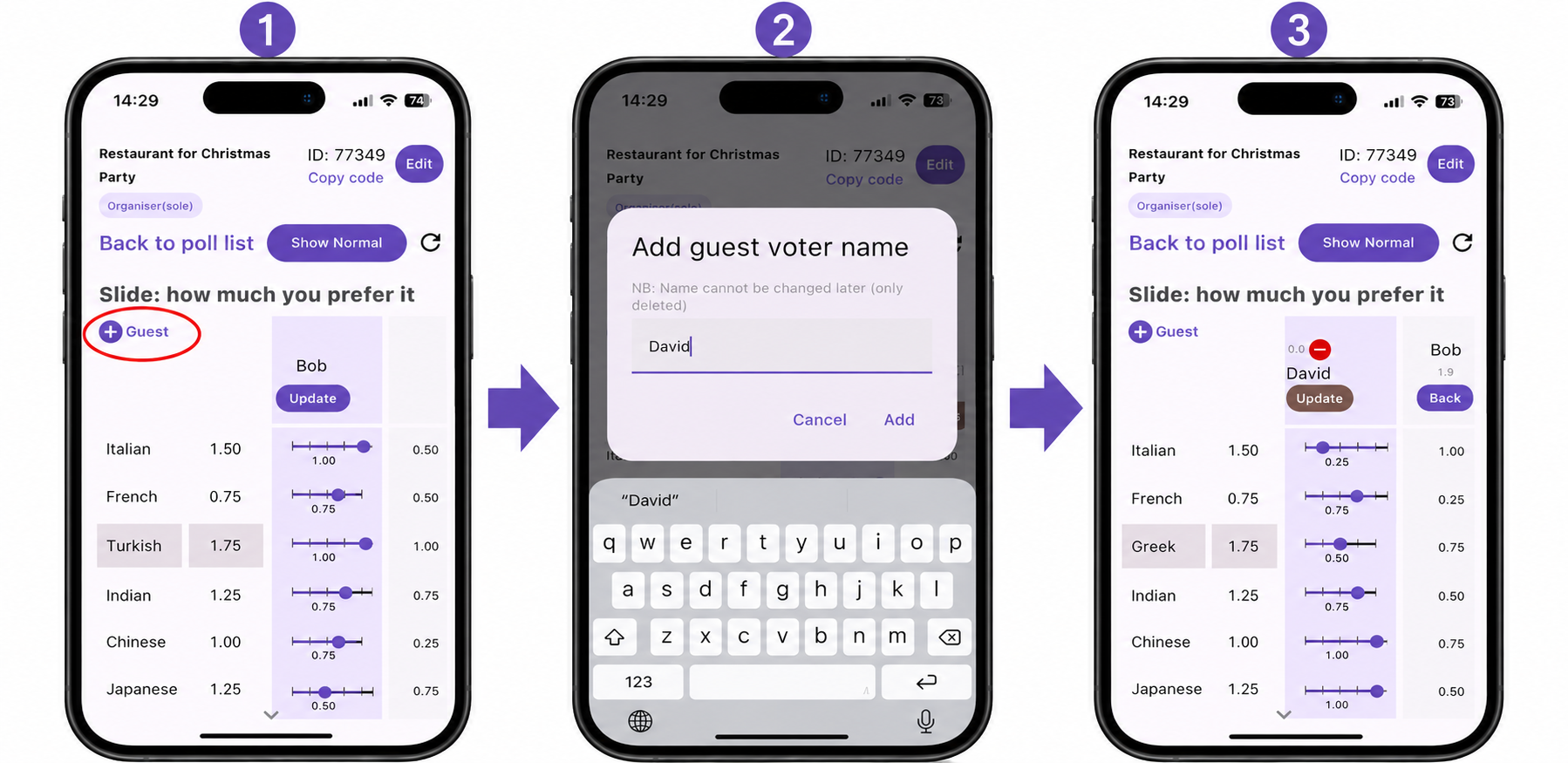
When the authentication is optional, you can add Guests by tapping [(➕)Guest]and vote on their behalf.
You have to vote yourself before adding any guest
Add guest voter name and vote for them.
You can delete guests by tapping (ー).
Edit Poll
Go to Poll List page
Choose the poll you want to edit from the list
Tap [Show]
Tap [Edit]
Organiser and Co-organiser(s) can edit anything but when a guest has already voted, you cannot change Authentication from Optional to Required.
When renaming an option, you are asked to confirm it. Tap [Confirm rename]to go ahead.
Voter can only edit (Rename/Add) options.
Tap [Create/Update]
Delete/Withdraw from Poll
Go to poll list
Choose the poll from which you wish to withdraw or delete, press withdraw or tap.
Only when you are a sole organiser, you can delete the poll. Otherwise, you can only withdraw from it.
Add Co-Organisers
Go to Edit page.
Enter User ID of the person whom you would like to make your co-organiser.
Tap [Find] to verify if the ID exists.
When the ID is found, press [Confirm/Update] to save.
Delete Your Account
Go to the Poll List page and tap Delete Account at the top left.